Disclosure: this article is written by Yoho's developer, Ramesh Dura. It is an introduction to my own app, not an independent review.
A familiar home for your everyday apps
Your Mac already has the apps you rely on. Yoho gives a few of those favorites a place of their own on your desktop, in a layout you choose.
Yoho Desktop App Board is a small macOS utility that puts a customizable board of application shortcuts directly on your desktop. You pick the apps, arrange them in a grid, and open them from there — the same way you might pin your most-used tools to a corkboard above a desk. The board is not a library of everything installed on your Mac. It is a short, deliberate selection: the apps you actually open every day.
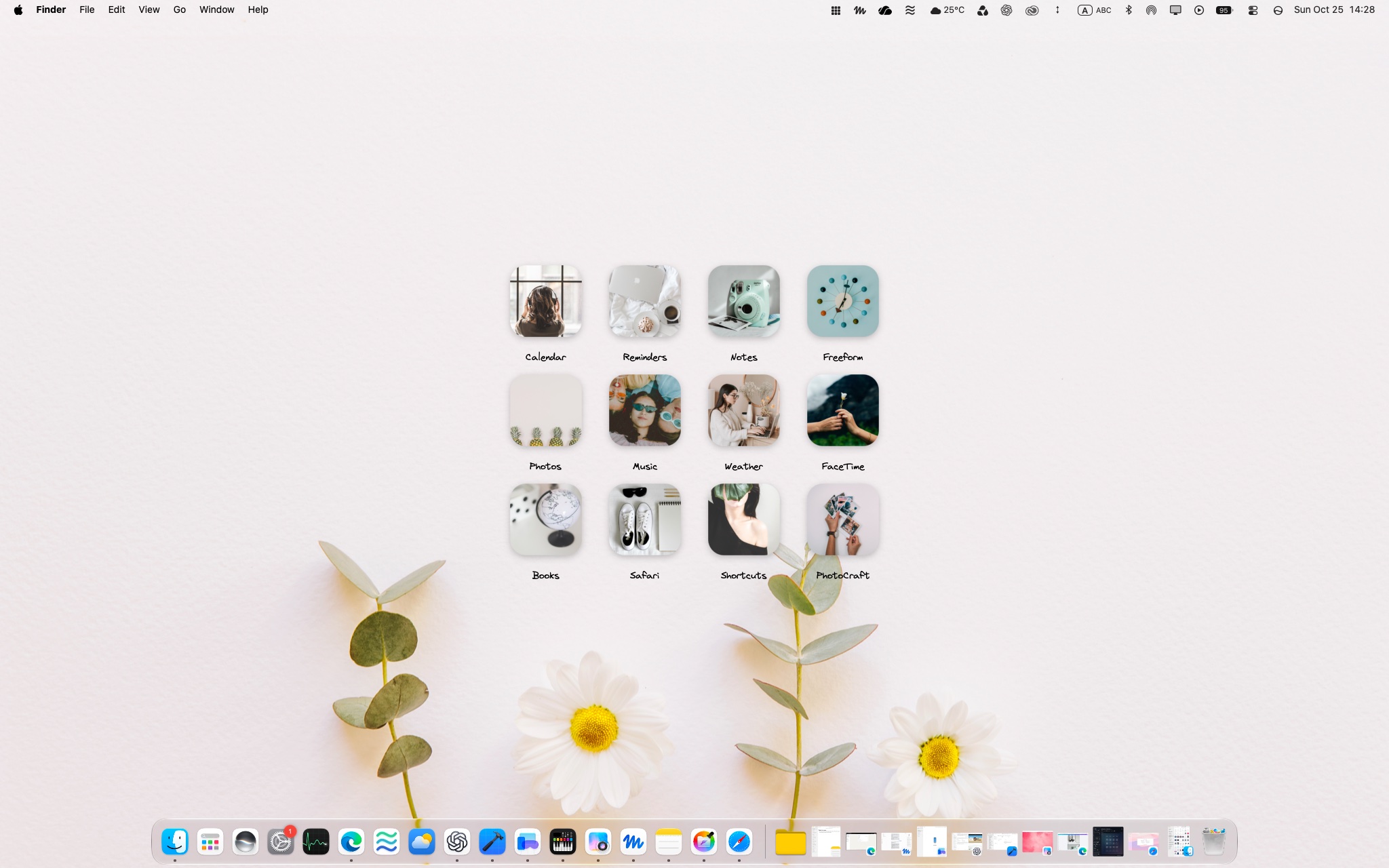
Arrange a small collection around your routine
Most of us cycle through the same handful of apps: a browser, a notes app, a calendar, a writing tool, music, and maybe one creative app. Yoho works best when you keep the board to that kind of short list.
Add the apps you use daily, place the ones you reach for most where your eye lands first, and leave the rest of your software in Launchpad, Spotlight, or the Dock, where it already lives happily. Six apps is a comfortable starting point, but the right number is simply the number you genuinely use.
Give the board a personal look
A desktop you enjoy looking at is a reasonable goal in itself. With Yoho, you can personalize each shortcut's name and artwork — shortening a long app name to the word you actually call it, or giving a shortcut artwork that suits your wallpaper. This personalization applies to the shortcuts inside Yoho; it does not change app icons anywhere else in macOS.
You also choose the board's appearance and where it sits on the desktop, so it can live in a quiet corner rather than spread across the middle of your wallpaper.

Refine your setup as you go
Routines change, and the board can change with them. You can edit and reorder shortcuts whenever you like — move a newly important app to the front, retire one you stopped using. If you make an edit you don't like, you can undo the change instead of rebuilding the board from scratch.
Yoho can also export a portable backup of your board configuration, and restore it later. That backup covers the board itself — your chosen shortcuts, names, artwork, and layout — so you can keep a copy of a setup you like. It is a file you save and manage yourself, not a cloud sync service.
How the board fits into your Mac
Yoho lives in the menu bar, where you manage it, and the board itself sits on the desktop, beneath your ordinary app windows. That placement is worth understanding: when your screen is full of windows, the board is covered, and you return to the desktop to see it — just as you would with files or widgets on the desktop. It also offers optional desktop clicking behavior, so you can choose how the board responds when you click the desktop.
Your board settings and artwork are stored locally on your Mac. Yoho is ¥800 on the Mac App Store, requires macOS 15.8 or later, and the current version is 1.0.
Who will enjoy it?
Yoho suits people who like seeing and clicking a small, familiar set of icons and who care about how their desktop looks. If you prefer a completely empty desktop, or you launch everything by typing into search, your current setup may already be the right one — a board is a preference, not a necessity.
Make a board of your own
If a personal home for your everyday apps sounds like your kind of desktop, you can get Yoho Desktop App Board on the Mac App Store. And if you'd like to prepare your desktop first — quieter wallpaper, tidier files, fewer distractions — our guide to making a MacBook desktop calm without hiding every app walks through it step by step.
FAQ
What is Yoho?
Yoho Desktop App Board is a macOS utility that places a customizable grid of your chosen app shortcuts on the desktop. You personalize the names, artwork, appearance, and placement, and manage it from the menu bar.
Does it replace my wallpaper?
No. The board sits on top of your desktop, above your wallpaper but beneath your app windows. Your wallpaper stays exactly as you chose it, and you can position the board so most of it remains visible.
Where does the board appear?
On the desktop itself. When windows cover the desktop, the board is covered too; you see it again when you return to the desktop, like desktop files or widgets.
Can I personalize the shortcuts?
Yes. You can edit shortcut names and artwork, reorder them, and undo changes. The personalization applies within Yoho, not to icons elsewhere in macOS.