Note: this guide mentions Yoho Desktop App Board, an app made by the author of this article, in the step about organizing app shortcuts. Everything else uses features built into your Mac.
A busy desktop usually isn't one problem. It's three smaller ones stacked together: loose files scattered across the screen, more visible elements than you actually use, and app shortcuts with no intentional home. Each one has a different fix, and none of them require hiding everything. This guide works through them in order — files first, then the background, then your apps — so you can keep the icons you genuinely like clicking and let go of the rest.
Decide what you actually want to see
Start with a decision, not a cleanup. Look at your desktop and ask what deserves to be visible: a wallpaper you like, perhaps a widget or two you really read, and a small set of apps you open every day. Everything else is a candidate to move, group, or launch another way.
"Calm" here is a visual preference — a desktop that feels quieter to look at. There's no rule that says six icons is serene and seven is chaos. Six everyday apps is a good example of a small, intentional set, but your number is whatever matches your routine.
Deal with loose files first
Files are the most common source of desktop clutter, and macOS already has a tool for them: Stacks. Stacks groups the files on your desktop into tidy piles by kind — documents, images, PDFs, and so on — which you can expand with a click when you need something. The exact steps can vary slightly between macOS versions, so check Apple's guide to using desktop Stacks for your version of macOS and follow it there.
Stacks groups files; it doesn't organize the contents for you. If a pile is still full of things you no longer need, take five minutes to move finished work into folders in Finder and delete what is truly done. Be honest about the improvement in any before-and-after: that tidiness came from grouping and moving files, not from any app you add later.
One caution: Yoho, the app mentioned later in this guide, does not sort or manage your files. Files are Finder's job, and Stacks is the right built-in tool for this step.
Give the wallpaper room
Your wallpaper is the largest thing on the desktop, so its mood sets the tone. As general design advice — not a scientific rule — images with quiet colors, soft contrast, and an uncluttered subject tend to feel calmer behind icons and windows than busy, high-contrast photos. Whatever you choose, check that your desktop items stay readable against it: shortcut labels and file names should be easy to read at a glance, not lost in a detailed part of the picture.
Leave some of the wallpaper empty on purpose. A board, a stack, and a widget all compete for the same space; breathing room around them is most of what makes a setup feel calm.
Review the Dock and widgets
Next, look at the elements framing your desktop. The Dock is a perfectly good home for everyday apps, and you may not need anything more. In Apple's Dock guide for your macOS version, you'll find options for its size, position, and hiding behavior. Remove apps you never launch from it, and keep the ones you use daily — a shorter Dock is easier to scan.
Do the same honest review for widgets. Keep the ones you actually glance at, such as a calendar or the weather, and remove the rest. Every element you keep should be earning its place by being used, not by being available.
Put everyday apps in one intentional area
Now for the apps themselves. You have two reasonable choices, and either can be the end of this project:
- The Dock. It's built in, it's free, and for many people a trimmed-down Dock is the whole answer.
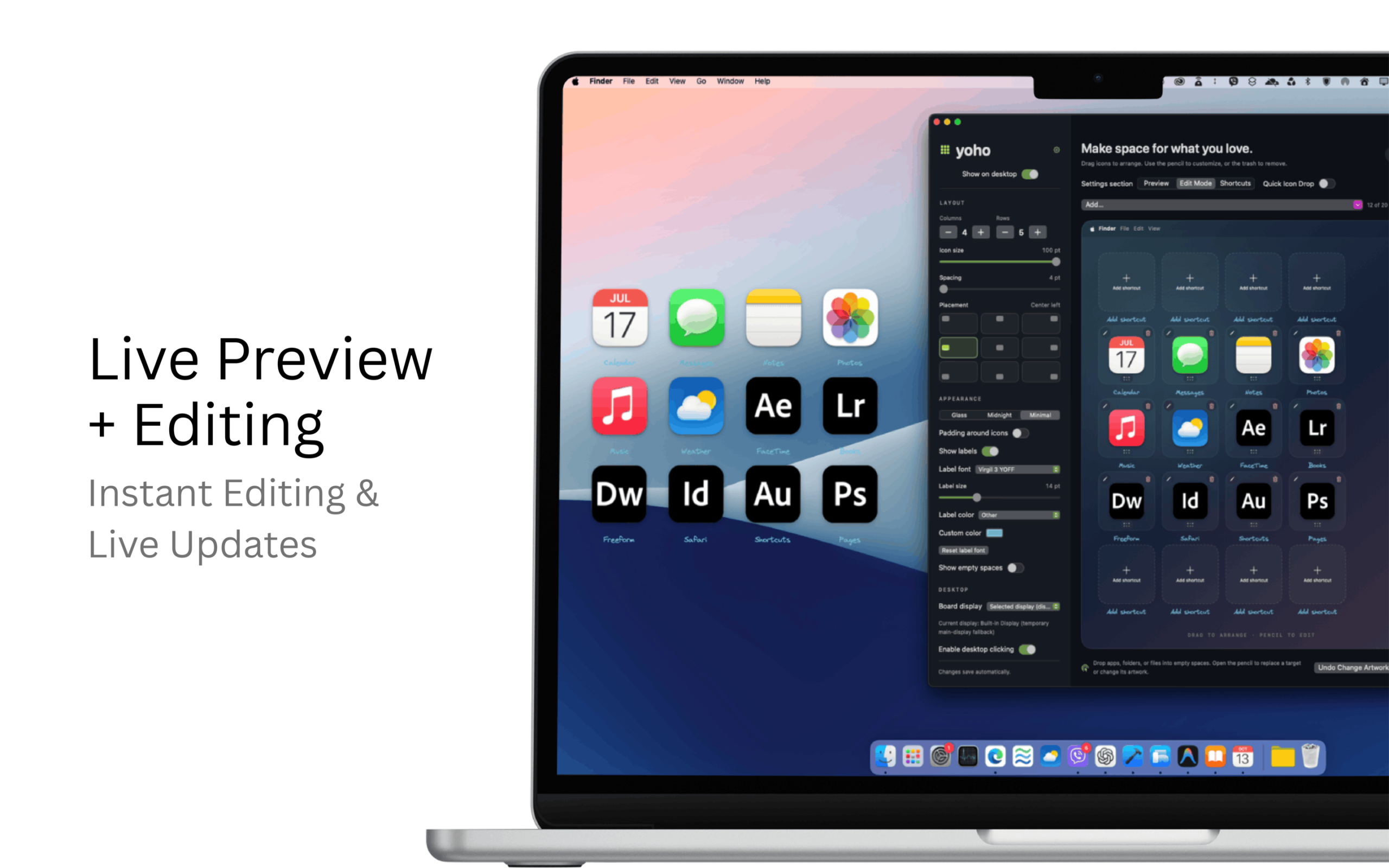
- A desktop board. If you like the idea of your everyday apps living on the desktop itself — in a grid you arrange, with names and artwork you choose — that's what Yoho Desktop App Board does. Instead of a long row of every app you own, the board holds a short, chosen selection in one area of the desktop, leaving the rest of the wallpaper clear.
Neither choice is about speed or productivity promises. It's simply about where you prefer your familiar icons to live.
Build the Yoho layout
If you decide to try the board, build it slowly:
- Choose your everyday apps first. Browser, notes, calendar, writing, music — whatever your real routine looks like. Resist adding everything installed; you can always add an app later.
- Arrange the grid around your routine. Put the apps you open most where your eye goes first, and group related ones near each other.
- Personalize if you like. Shorten names to the words you actually use, and pick artwork that sits comfortably with your wallpaper. These changes apply to the shortcuts in Yoho, not to icons elsewhere in macOS.
- Choose appearance and placement. Settle the board in one area of the desktop — a corner, an edge — rather than the center, so it coexists with your wallpaper.
- Edit freely. You can reorder shortcuts as your habits change, and undo a change you don't like instead of starting over.

Check the finished setup
Step back and test the result against your own eyes:
- Can you recognize every shortcut and read its label easily?
- Is the board readable against your wallpaper, without squinting?
- Does the desktop still have empty space, or did everything just move into a neater pile?
- Can you reach the board comfortably? The board sits on the desktop beneath your windows, so it's there when you return to the desktop — it is not visible on top of a full screen of work.
If a label is hard to read, adjust the artwork or the placement rather than the wallpaper you love. Small changes are the point of a setup you control.
Save your configuration
Once the board looks the way you want, consider saving a copy of it. Yoho can export a portable backup of your board configuration — your shortcuts, names, artwork, and layout — and restore it later. Keep the exported file somewhere sensible, like the same place you keep other backups. This is a manual backup of the board's settings, not cloud sync, and it doesn't back up the apps themselves.
Keep only what stays useful
A calm desktop is maintenance, not a one-time event. Every few weeks, glance at the board and ask which shortcuts you actually clicked. Remove the ones that quietly stopped earning their place, and add new regulars as your work changes. The same applies to the Dock and your stacks of files. Small, occasional reviews keep the setup honest — and keep it yours.
Troubleshooting
My files are still scattered.
That's a Finder job, not a board problem. Use Stacks to group them, then move finished files into folders deliberately.
I can't see the board while I'm working.
That's expected behavior. The board lives on the desktop, beneath your windows. Return to the desktop and it will be there. If you want app access that's always on screen, the Dock is the better fit for you.
I prefer no icons at all.
Then a desktop board probably isn't for you — and that's fine. An empty desktop with search-based launching is a legitimate, tidy setup.
FAQ
Do I need an extra app to organize my Mac desktop?
No. Stacks groups your files and the Dock holds your apps, both built in. An app like Yoho is only for people who specifically want a personalized grid of shortcuts on the desktop itself.
Is a desktop app board the same as a widget?
No. Widgets show information, like a calendar or the weather. A board holds shortcuts that open your apps.
Can I keep most of my wallpaper visible?
Yes. Choose a small set of apps, place the board in one area, and group your files with Stacks — most of the wallpaper stays clear.
Want your everyday apps in a layout of their own?
If you like the idea of a small, personal grid of the apps you open daily, explore Yoho Desktop App Board on the Mac App Store — ¥800, for macOS 15.8 or later. And if the Dock plus Stacks already give you the calm desktop you wanted, you've finished this guide with everything you need.