A calm desktop does not have to be an empty one. For a lot of MacBook owners, the sweet spot is somewhere in the middle: a beautiful wallpaper with room to breathe, a small group of apps you actually open every day, and nothing else competing for your attention. The good news is that you do not need to rebuild your whole setup to get there. You just need to pick the right tool for the part of the desktop you want to change.
One honest note before the list: this article is published by the developer of Yoho, the first tool below. Everything else on the list is included because it genuinely does its job well, and in some cases a free built-in option may be all you need.
Choose the part of your desktop you want to change
"Desktop customization" sounds like one job, but it is really four different ones. App access is about how you open the programs you use daily. File organization is about the screenshots, documents, and downloads that pile up on the desktop itself. Information widgets put small pieces of live information — a calendar, the weather, system stats — in view. And background appearance is the wallpaper layer underneath everything. Each tool below handles one of these jobs. Knowing which job bothers you most makes the choice much easier.
It is also worth knowing about Stacks, a free feature built into macOS that automatically groups desktop files into tidy piles by kind. If loose files are your only problem, Stacks may solve it in one click, no extra app required.
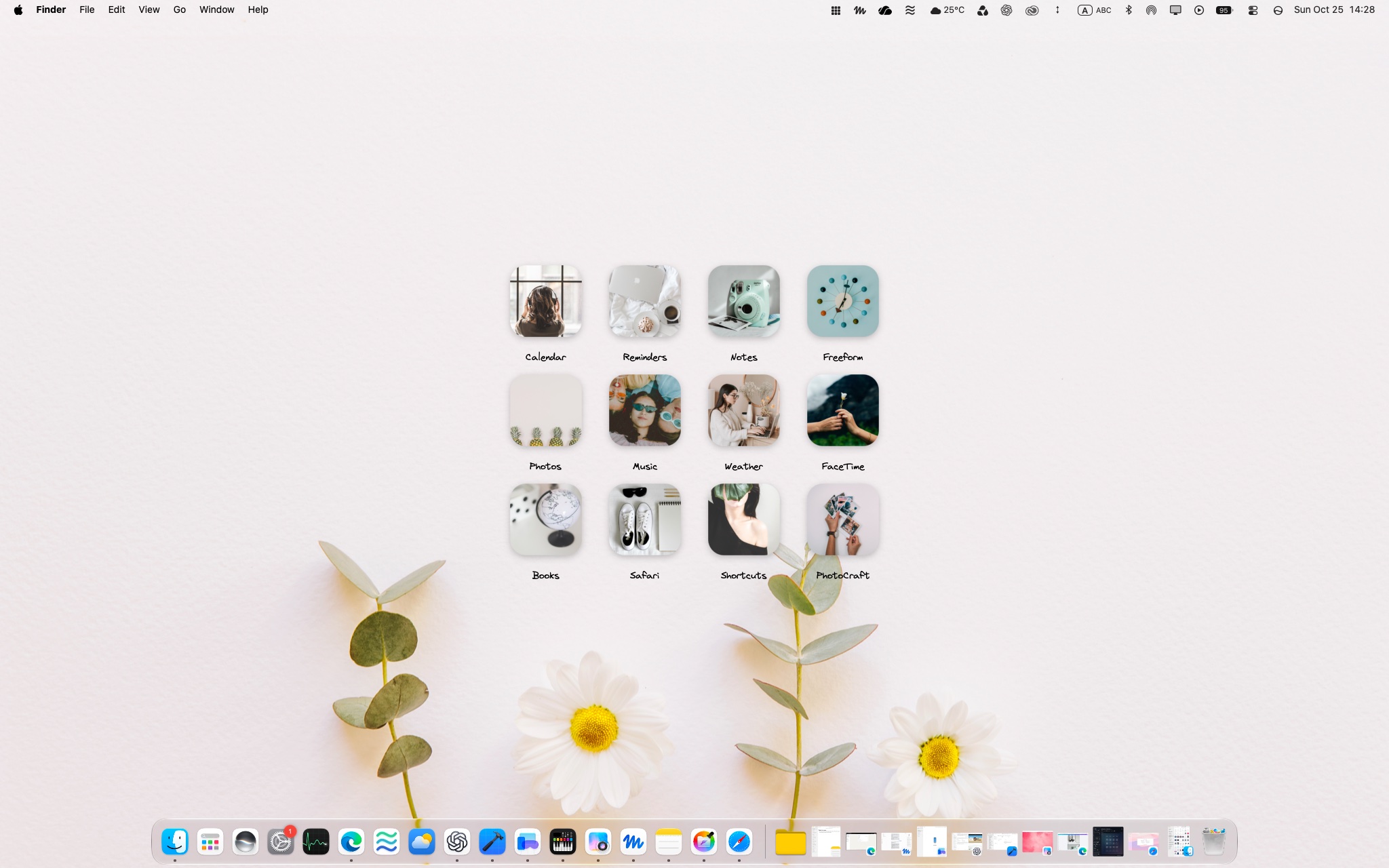
Yoho Desktop App Board — for a personal grid of everyday apps
Yoho Desktop App Board is a native macOS utility that gives your everyday application shortcuts a customizable home on the desktop. Instead of scattering icons across the screen or hunting through folders, you arrange a selected group of apps in a grid, personalize the shortcut names and artwork, and choose the board's appearance and placement so it suits your wallpaper and your habits.
The details are simple and deliberate. You can edit and reorder shortcuts as your routine changes, undo a change if you do not like it, and export a portable backup of your board configuration to restore later. The board is managed from the menu bar, you can choose whether it responds to desktop clicks, and your settings and artwork are stored locally on your Mac. The board sits beneath your ordinary app windows — it belongs to the desktop, so when windows cover it, you return to the desktop to use it, just as you would with desktop icons.
Yoho is a one-time purchase of ¥800 on the Mac App Store and works on macOS 15.8 or later. It is a good fit if you like seeing and clicking a small, familiar set of app icons and you care how they look. If you prefer an entirely empty desktop or you launch everything by searching, it is honestly not for you.

macOS Dock — for built-in everyday app access
The Dock is already on your Mac, and for many people it is enough. You can move it to the side of the screen, resize it, turn on magnification, or set it to hide automatically and appear only when you move the pointer to the edge. A setup many people find calm: keep only your daily apps in the Dock, remove the rest, and let it hide when not needed.
The Dock's limits are mostly about personality. It is a single row (or column) in a fixed style, and it was not designed to be arranged around your wallpaper or given custom names and artwork. But it costs nothing, it is always available over your windows, and it might already do everything you want. Try tidying it before installing anything.
iCollections — for broader desktop organization
iCollections takes on a wider job than an app board. According to its developer, Naarak Studio, it lets you create "Collections" — areas on the desktop where you group related items together, including files, folders, and applications. The idea is closer to organizing the desktop itself than to building a launcher.
Beyond basic collections, the vendor documents extras such as tabs within a collection, folder views, disk panels, photo frames, and customizable collection styles, fonts, and colors. If your desktop problem is everything — documents, screenshots, drives, and apps all mixed together — that broader scope may suit you better than a dedicated app board. Because it handles real files and folders, it is a different kind of tool, so it is worth reading the vendor's site carefully to see whether its approach matches how you think about your desktop.
Übersicht — for customizable information widgets
Übersicht is for people who want live information on the desktop itself: a calendar, a to-do list, the weather, battery and system stats, or almost anything else that can be expressed as data. Its widgets are built with web technologies — HTML, CSS, and JavaScript, often fed by system commands — and there is a gallery of community-made widgets to download and adapt.
That flexibility comes with a trade-off. Choosing and installing a ready-made widget is easy enough, but creating your own or deeply editing one usually involves writing or tweaking code. If that sounds fun, Übersicht is wonderfully open-ended. If it sounds like homework, a simpler tool from this list will probably make you happier. Keep the widget count low either way — a desktop full of live data is rarely a calm one.
Plash — for a website-based desktop background
Plash, by Sindre Sorhus, does one playful thing: it displays a website as your desktop wallpaper. People use it for things like an animated scene, a dashboard, a photo stream, or a favorite live page, and it can rotate between several sites.
A website background is the opposite of a static image, though, so choose with your "calm" goal in mind. A slow, subtle page can feel alive in a nice way; a busy news site or a fast animation can make the desktop feel restless. Plash is free and simple to try, which makes it an easy experiment: if the moving background distracts you, you will know within a day.
Which option fits your desktop?
| Tool | Purpose | Built-in or additional software | Main job |
|---|---|---|---|
| Yoho Desktop App Board | A personal grid of everyday app shortcuts on the desktop | Additional (Mac App Store, ¥800) | App access |
| macOS Dock | The standard row of favorite and running apps | Built-in | App access |
| iCollections | Collections that group files, folders, and apps on the desktop | Additional | Files and app organization |
| Übersicht | Custom widgets showing live information | Additional | Information widgets |
| Plash | A website used as your wallpaper | Additional | Background appearance |
Start with one change
Resist the urge to install everything at once. Pick the one job that bothers you most — for most people it is either loose files or app access — and change only that. If app access is the issue, start small: choose six apps you use regularly, put them in one intentional place, and live with it for a few days before adding more. A desktop becomes calm by having less on it, arranged on purpose — not by having more tools managing more things.
FAQ
Do I need an extra app to customize my Mac?
No. The Dock and Stacks are built in and free, and for file clutter or simple app access they may be all you need. Extra apps make sense when you want something the built-ins do not offer, like a personalized app board on the desktop itself.
Is a desktop app board the same as a widget?
No. A widget displays information, like a calendar or the weather. An app board like Yoho holds shortcuts that open your apps. They do different jobs and can happily coexist — or you can use just one.
Can I keep most of my wallpaper visible?
Yes, and that is rather the point. A small board with a handful of shortcuts takes up one area of the desktop and leaves the rest of the wallpaper in view. Choosing fewer apps is what keeps it that way.
If you want a personal home for your everyday app shortcuts, explore Yoho Desktop App Board on the Mac App Store.