Most Mac desktops collect things by accident. A few app icons you meant to remove, shortcuts from months ago, and a wallpaper you can barely see anymore. This guide suggests a different approach: choose just six apps you open every day, give them a tidy home on the desktop, and leave the rest of the screen calm.
The tool used here is Yoho Desktop App Board, a native macOS utility that places a customizable grid of application shortcuts directly on your desktop. You arrange the shortcuts yourself, personalize their names and artwork, and choose the board's appearance and placement. The board lives on the desktop layer, beneath your ordinary app windows, and is managed from the menu bar. Your board settings and artwork are stored locally on your Mac.
This is a setup to try, not a rule to follow. Your version might end up with four apps, or eight. The point is that every shortcut on the board is there on purpose.
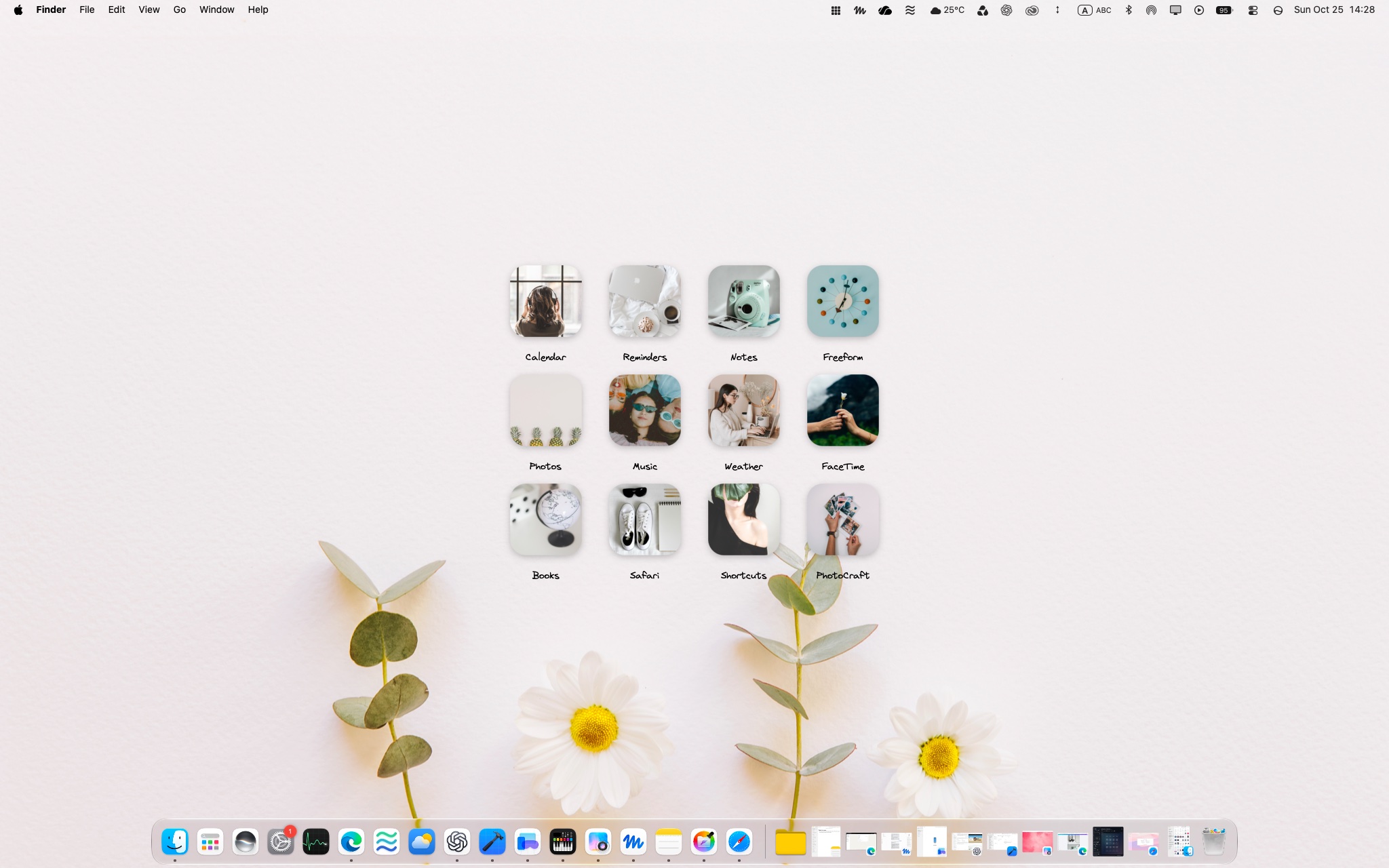
Start with the desktop you actually want
Before adding anything, decide what you want your desktop to feel like when you sit down in the morning. For most people trying this setup, the answer is something like: quiet, easy to read, and with the apps I use daily within one click.
A useful first step is to clear away what is already there. Move loose files into folders in Finder, and remove desktop shortcuts you no longer use. Yoho is a home for app shortcuts, not a file organizer, so it helps to handle files separately first. If you would like a fuller walkthrough of calming down the whole desktop — files, Dock, widgets, and wallpaper — see our guide to building a calm MacBook desktop.
Then pick a wallpaper you enjoy looking at and that leaves enough contrast for labels to stay readable. The board will sit on top of it, so busy wallpapers with lots of detail where you plan to place the board can make shortcuts harder to read.
Choose six apps from your real routine
The best board is a mirror of an ordinary day, not a wish list. Think about the apps you genuinely open most mornings, and pick six of those. Here is one example selection to adapt:
- A web browser — the starting point for most of the day.
- A notes app — for capturing thoughts before they disappear.
- A calendar — to check what the day holds.
- A writing app — documents, drafts, or journaling.
- A music app — something pleasant to start alongside work.
- One creative tool — photo editing, drawing, or design, whichever you reach for.
Your six will probably differ. A student might swap the writing app for study tools; a freelancer might add invoicing or chat. What matters is honesty: if an app only gets opened twice a month, it does not need a place on the board. You can always launch it the usual way. These are apps already installed on your Mac — Yoho gives their shortcuts a home; it does not bundle them.
Arrange the board so it suits your desktop
Once your six are chosen, add their shortcuts to the board and arrange them in an order that makes sense to you — perhaps the sequence in which you open them, or simply the ones you use most in the most comfortable position. Yoho lets you edit and reorder shortcuts at any time, and if you change your mind about an edit, you can undo shortcut changes and try again. Nothing here is permanent, which makes experimenting low-pressure.
Next, make it yours. You can personalize shortcut names and artwork within Yoho, so labels can be shorter, friendlier, or written the way you actually refer to the app. Adjust the board's appearance and placement so it sits well with your wallpaper — for example, in a corner that tends to stay empty, rather than behind where your windows usually open.

A few small tips while arranging:
- Keep names short enough to read at a glance.
- Leave space around the board rather than filling the screen — the calm feeling comes from what you leave out.
You can also decide whether the board responds to desktop clicks; the controls live in the menu bar, where the app is managed day to day.
Live with it for a week, and notice what happens
Now use the setup normally for a week — not as a test you have to pass, but as a way to learn what you actually do. Two honest trade-offs are worth knowing about in advance.
First, the board sits beneath your ordinary windows. While you are working inside an app, the board is covered, and reaching it means returning to the desktop. If your day is one long full-screen session, you may find you rarely see it. Second, Yoho is not the only way to open apps, and it does not have to replace anything. Keep the Dock and Spotlight search exactly as they are, and notice which method you naturally reach for. Many people will use the board at the start of the day and search the rest of the time — that is a perfectly good outcome.
During the week, pay attention to small things. Are there shortcuts you never click? Is there an app you keep wishing were on the board? Does the placement still feel right, or does a window always cover the same corner?
After a week, keep only what earned its place
At the end of the week, do a short review. Remove shortcuts you never used, add any app you kept missing, and reorder or rename anything that felt slightly off. Shrinking the board to four well-used apps is a success, not a failure — the goal was never six for its own sake.
When the layout feels settled, consider exporting a portable backup of your board configuration. Yoho can export and restore your board setup, so if you move Macs or simply want a safety copy, your arrangement is saved. It is a backup of the board's configuration, not of the applications themselves.
Repeat the review whenever your routine changes. A board that follows your real habits stays useful; a board you never update slowly turns back into clutter.
Frequently asked questions
Do I have to pick exactly six apps?
No. Six is a starting suggestion that keeps the board small and the decision easy. Choose the number that fits your routine.
Does Yoho replace my Dock or Launchpad?
It does not need to. Yoho is a board for selected shortcuts on the desktop. The Dock and Spotlight remain available, and many setups work best using them together.
Can I see the board while I'm working in an app?
The board belongs to the desktop layer, so open windows cover it. You return to the desktop to use it, the same as clicking any desktop icon.
What does Yoho cost, and what does it need?
Yoho Desktop App Board is a one-time purchase of ¥800 on the Mac App Store and requires macOS 15.8 or later. Check the listing for the current version details before installing.
Build your own version
If you enjoy the idea of a visible, personal home for the apps you open every day, try the six-app setup for a week and see what you keep. Your everyday apps, arranged in a desktop board that feels like yours.
Get Yoho Desktop App Board on the Mac App Store: https://apps.apple.com/jp/app/yoho-desktop-app-board/id6822032685